- Targeted audience
- Is this an intranet, extranet, or the Internet?
- Targeted browsers
- Remember that IE6 is not supported out of the box.
- Only 32-bit IE7 and IE8 on Windows are fully supported without limitations.
- Other browsers are supported with some limitations.
- Version of SharePoint
- SharePoint Foundation
- SharePoint Server
- Screen resolution
- The most common resolution now is 1024×768.
- Will your users require something different?
- Questions to ask
- What is the time frame to create the brand?
- Is this a new design or one based on an existing design?
- Does this require any custom web parts or third-party web parts?
- What navigation is required?
- Horizontal
- Vertical
- Breadcrumb
- They define the skeleton of a site.
- They define the layout and flow of a web site.
- They promote ideas without distracting with colors.
Showing posts with label Branding sharepoint site. Show all posts
Showing posts with label Branding sharepoint site. Show all posts
Wednesday, March 5, 2014
Things to be considered while applying Branding to SharePoint 2010 sites


Wednesday, May 21, 2008
Branding sharepoint site III
Making your own content type
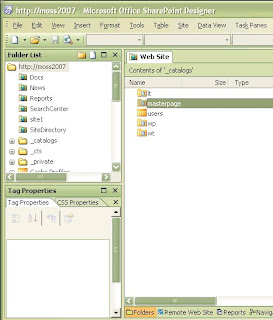
 Then open folder master page and click on page layout

after that go to new and sharepoint content type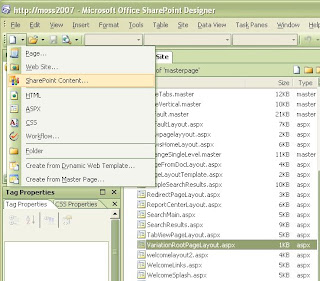
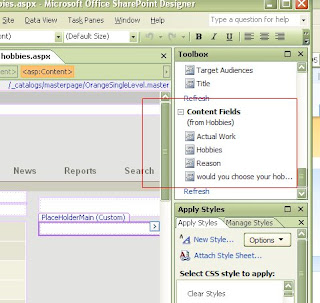
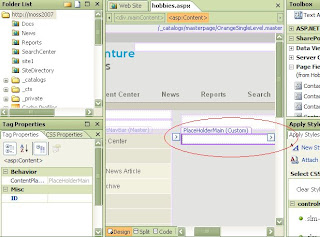 There you will see the place holder part
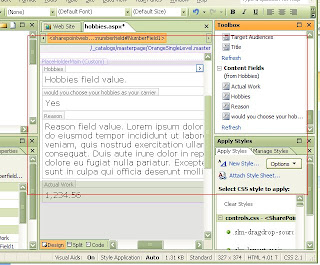 Save this page check in the ocument and you are done, you have sucessfully made your own content type,
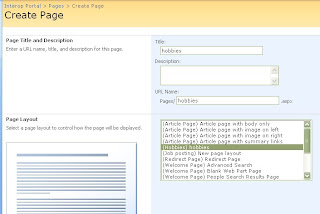 You see your creation listed there
In this we will learn to make our own content type and publish it
To look at your Content types in the site browse to site actions > site settings > Content Types
There you will get a list of all content types
Click on create
Type name and desctiption and choose parent type as publishing
and you can choose to add it to new or existing group
I have choosen Name as Hobbies and Parent content type as Publishing Content type
Then you can add some columns from the content type page like i have added a yes no checkbox and a HTML summary page
and a existing columb as job description
Now open your sharepoint Designer
Open your site from file > open and site name
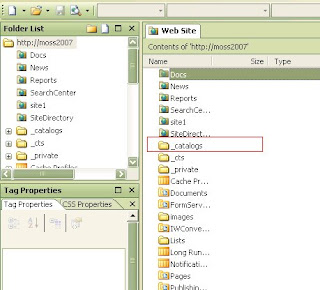
then open the _catalog folder
Then open folder master page and click on page layout after that go to new and sharepoint content type
after it is listed in the list of content types, double click the content type and open it in design mode
There you will see the place holder part Go to the tool box situated at the right upper of the page and drap drop the columbs
then you will see something like this
Save this page check in the ocument and you are done, you have sucessfully made your own content type,Wanna check that out ok,
Go to the main page of your site
site actions > site settings and Create Page
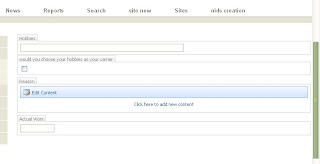
You see your creation listed there create a page using it and tadaaaaaaaaaa here is your own page
Tuesday, May 20, 2008
Branding sharepoint site Part II
How many times have I wondered when I see 'Internal & Restricted' written on every page or site or Copyright Label on Bottom of sharepoint sites being stamped on everypage that we browse. well that is actully the fundas of WCM . I will post a topic on Content Management and intergration of CMS 2002 intergration with MOSS in my later Posts
back to where I was I experimented on how and where to add the Copyrigth label and implement it on all other sites and yepheeee it worked for me with some limitaions which i will list down.
To start of with we need to know what a master page is all about in sharepoint and where do you find it A master page determines the loook and feel of your site and it also determines the navigation controls that useres use. Now suppose you have a blsnk site collection and your want to change the master page of the site go to Site actions > site settings > click on Master Page under look and feel
There the option will be default change it to anyone you like I will take example of Blue Band master page
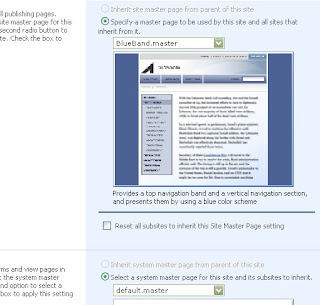 Select the page and check on check box that says inheriting to subsites. Now your page is changed to a brand new master page
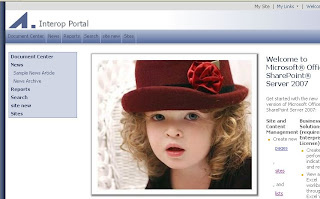 Now after this you have to open this site in sharepoint designer Then Open the Site in Designer and open folder called _catalogs folder and double click the Master page folder.
back to where I was I experimented on how and where to add the Copyrigth label and implement it on all other sites and yepheeee it worked for me with some limitaions which i will list down.
To start of with we need to know what a master page is all about in sharepoint and where do you find it A master page determines the loook and feel of your site and it also determines the navigation controls that useres use. Now suppose you have a blsnk site collection and your want to change the master page of the site go to Site actions > site settings > click on Master Page under look and feel
There the option will be default change it to anyone you like I will take example of Blue Band master page
Select the page and check on check box that says inheriting to subsites. Now your page is changed to a brand new master page Now after this you have to open this site in sharepoint designer Then Open the Site in Designer and open folder called _catalogs folder and double click the Master page folder.There Double click on the Blue Band master folder. And open the folder now all you have to do is add this chunk of code
So it starts showing on the page but how do we implement it on all the pages
After this is done we will switch to Apply styles on the bottom right corner and select topNavitem so that this implies to all the pages where topNavItem is used and here is how it looks
 Limitations are that I didnot find it being implemented on the new page that i created even after changing it to master page
Also it was comimg haywire on some pages and i had to adjust the table. Please do leave me comments and let me know if there is anything that I need to add here
Branding the sharepoint site Part I
Alright, I have come across a very new and good feature of MOSS, Its called Branding the site now what do you actually mean by branding the site its to have a label or logo of the company other that using Microsoft Features, also to set up a theme that complies to your product like L'oreal and other companies who will alwayz use there own specific logo.
Now Changing the logo of the site is fairly simple you just need to upload the image to any document library and copy the link
like the default logo of the site is :
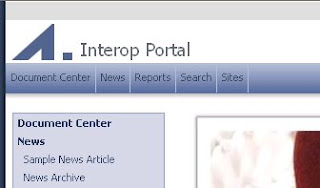
Then you upload a new Image file to the Document Library, click on it and take the full url and browse to Site Actions > Site settings > Title Description Icon and settings and Specify the url at the Logo url and Description icon, Click on OK and your done the site starts showing your logo
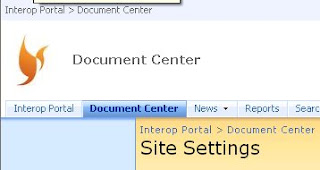
Tadaaaaaaa it changes every where in site but remember it will not apply across web applications and will not be inherited to new subsites that you create you will have to perform the same operation again
Subscribe to:
Posts (Atom)